Connecting an INMP441 to the WLED Controller#
With a digital I2S microphone, WLED reacts to music and sound in the room. This guide covers connecting an INMP441 to the cod.m WLED Controller V0.10.
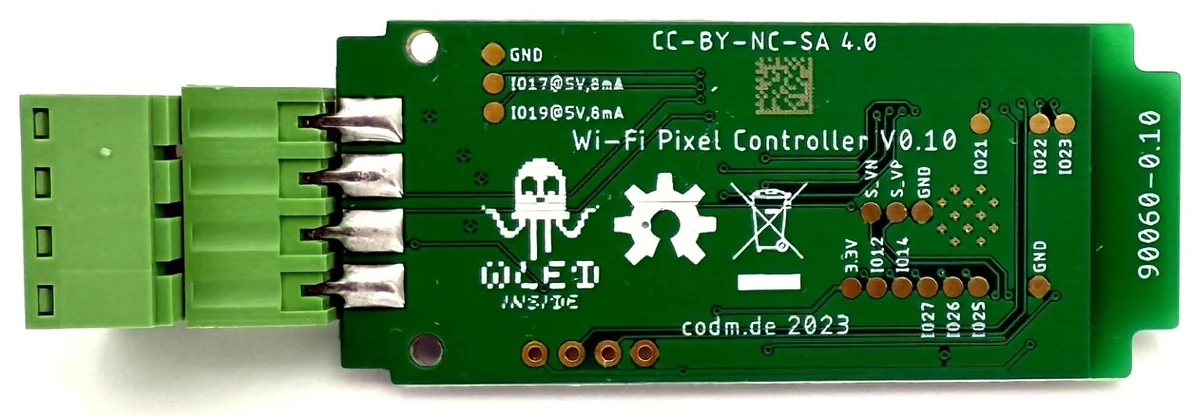
No modification of the circuit is needed: the back of the board carries solder pads giving access to free GPIOs as well as 3.3 V and GND. They are labelled there with their GPIO number.
Requirements
- cod.m WLED Controller V0.10 (ESP32)
- INMP441 breakout module – available in packs of three for €5 to €7
- WLED 0.15 or newer – the official builds already include the
AudioReactiveusermod - Soldering iron with a fine tip, thin stranded wire (e.g. 0.14 mm²), a steady hand
Why the INMP441#
The INMP441 is a digital I2S microphone with an integrated analog-to-digital converter. It delivers a clean digital signal and is clearly superior to analog microphones such as the MAX4466 – the ESP32's own ADC is only partly suited to audio and is sensitive to noise from the power supply.
For background, see the WLED documentation on Audio Reactive.
Solder pads on the back#
Five of the solder pads are needed:
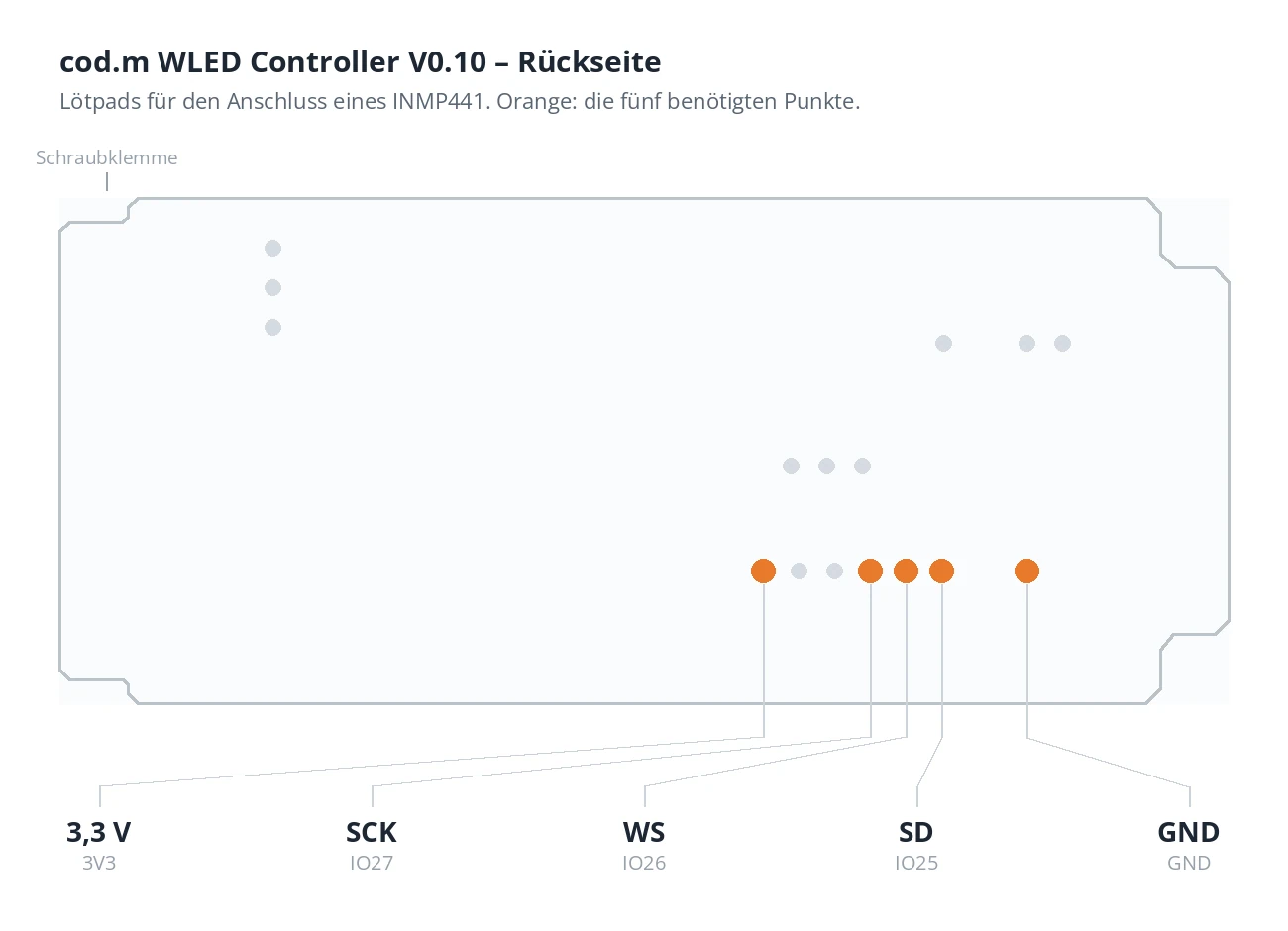
| Pad | INMP441 | Function |
|---|---|---|
3V3 |
VDD | 3.3 V supply |
GND |
GND | Ground |
IO27 |
SCK | Bit clock |
IO26 |
WS | Word select (L/R clock) |
IO25 |
SD | Data output of the microphone |
The pads are labelled on the board. The same row also carries IO12 and IO14, which are not needed here.
Connections on the microphone#
The microphone module carries its labels on the side with the sound port. The upper row is printed upside down there – worth a second look when wiring.
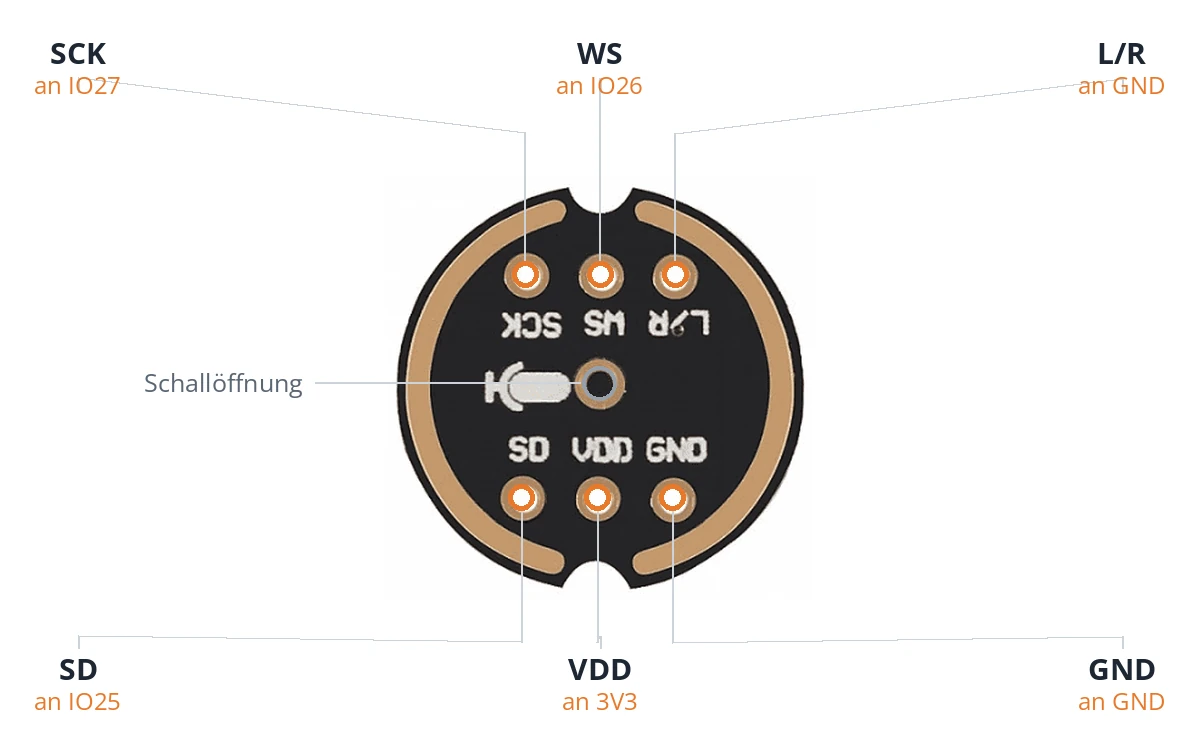
L/R is not run to the controller but bridged to GND directly on the module. WLED evaluates the left channel only; without that link the signal stays silent.
The sound port is on the labelled side
The INMP441 is a bottom-port microphone: sound enters through the small hole next to the microphone symbol, not through the component on the opposite side. That side later faces outwards – so solder the wires on the component side, where they will not be in the way when gluing.
Do not use IO12
GPIO 12 selects the flash voltage when the ESP32 boots. If it is held high at power-up, the controller may fail to start. Use IO27, IO26 and IO25 for the microphone instead.
Wiring#
- Disconnect the controller from power and take it out of its enclosure.
- Cut five wires to length, depending on where the microphone will sit – as short as possible, 5 to 10 cm is usually plenty. The longer the wires, the more interference you pick up.
- Solder them to the microphone module: VDD, GND, SCK, WS, SD, plus the link from L/R to GND.
- Solder the wires to the pads on the back of the controller. The pads are small and 1.8 mm apart – use little solder and check for bridges between neighbouring pads afterwards.
- Check your connections with a multimeter before switching on, especially between 3.3 V and GND.
Mounting in the enclosure#
A microphone sealed inside the case barely hears anything – sound has to reach the INMP441's port from outside. What works well is drilling a hole in the back of the enclosure and gluing the module to the inside so that its port sits right behind it.
- Find the position. Hold the module against the inside of the enclosure with its labelled side – the one carrying the sound port – facing out, and mark the spot.
- Drill. 2 to 3 mm is plenty. Drill slowly and back the enclosure with a piece of scrap, otherwise the plastic tears out on the exit side. Deburr by hand with a larger bit.
- Align and glue. Position the module so that the sound port is centred over the hole. Apply adhesive only at the corners or along the edge of the board – never over the port.
- Let it cure before reassembling the controller.
Tips from practice
- Adhesive: Hot glue or double-sided foam tape both work well and can be removed again. Avoid cyanoacrylate – the fumes settle on the microphone membrane and damp it permanently.
- Sealed, not blocked: A thin bead of adhesive around the port stops sound from leaking past the microphone sideways. It noticeably improves directionality.
- Distance from the electronics: Keep it as far as possible from the switching regulator (towards the connector) and the LED data line. Both radiate, and a couple of centimetres make an audible difference.
- Test first: Fix it temporarily, set the levels and listen to whether the response is right. Glue afterwards.
Configuration in WLED#
- Open the web interface, go to
Config → Usermodsand scroll to theDigitalmicblock within theAudioReactivesection. - Set
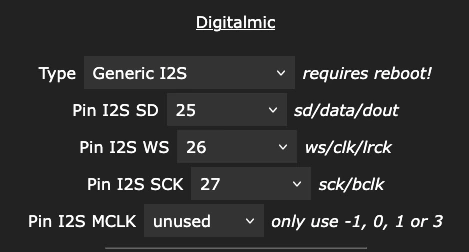
TypetoGeneric I2S. -
Enter the pins:
Pin I2S SDto25Pin I2S WSto26Pin I2S SCKto27
-
Leave
Pin I2S MCLKatunused. The master clock is only needed for line-in adapters, not for the INMP441. - Save.
- Perform a hard reset – either with the RST button on the board or by disconnecting power. The I2S driver is only set up at boot; without a restart the old configuration stays active. WLED points this out with
requires reboot!next to the field.
Setting the levels#
After the restart the LEDs should react to sound. This procedure has proven reliable for dialling it in:
- Select the
Gravimetereffect and leave its sliders at their defaults. - Under
Config → Usermods → AudioReactiveset Gain high (around 200), Squelch to1and turn AGC off. Save. - The LEDs now react to almost anything, including ambient noise.
- In a quiet room, raise Squelch step by step, saving each time, until the LEDs stop moving in silence. For digital microphones the value is usually between 1 and 20.
- Lower Gain to around 40, play music at normal volume and adjust until the response feels right.
- Optionally set AGC to
Normal– the gain is then adjusted automatically as the volume changes.
If it does not work#
No reaction at all. First check that a hardware reset really happened after changing the pins. Then check the link from L/R to GND.
The controller no longer boots. Check whether GPIO 12 was used by mistake, or whether there is a solder bridge between neighbouring pads.
LEDs flicker in silence. Raise Squelch. If that does not settle it, the wires are too long or run too close to the LED data line.
Only one controller should carry the microphone. WLED can distribute the audio data over the network: set one device to Send and all others to Receive. See the WLED documentation for details.